Editor tour
The project editor is where you record, arrange, mix, and collaborate. This guide orients you to the main areas of the workspace.
Header

The top of the editor shows the Vamp title (click to rename), a settings menu, and collaborator avatars. Use settings for export and link visibility. The facepile opens the members dialog.
Track pane (left)
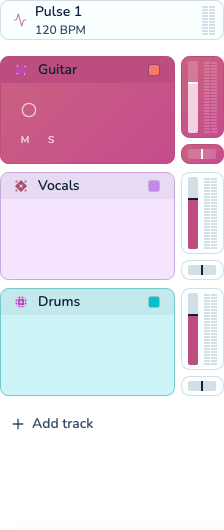
The left column lists your tracks. Each row shows arm, monitor, mute, solo, lock, gain, pan, and a level meter. Pulse tracks and clip groups appear in sticky headers above the audio tracks. Drag tracks to reorder or drop one onto another to group them.
Timeline (right)
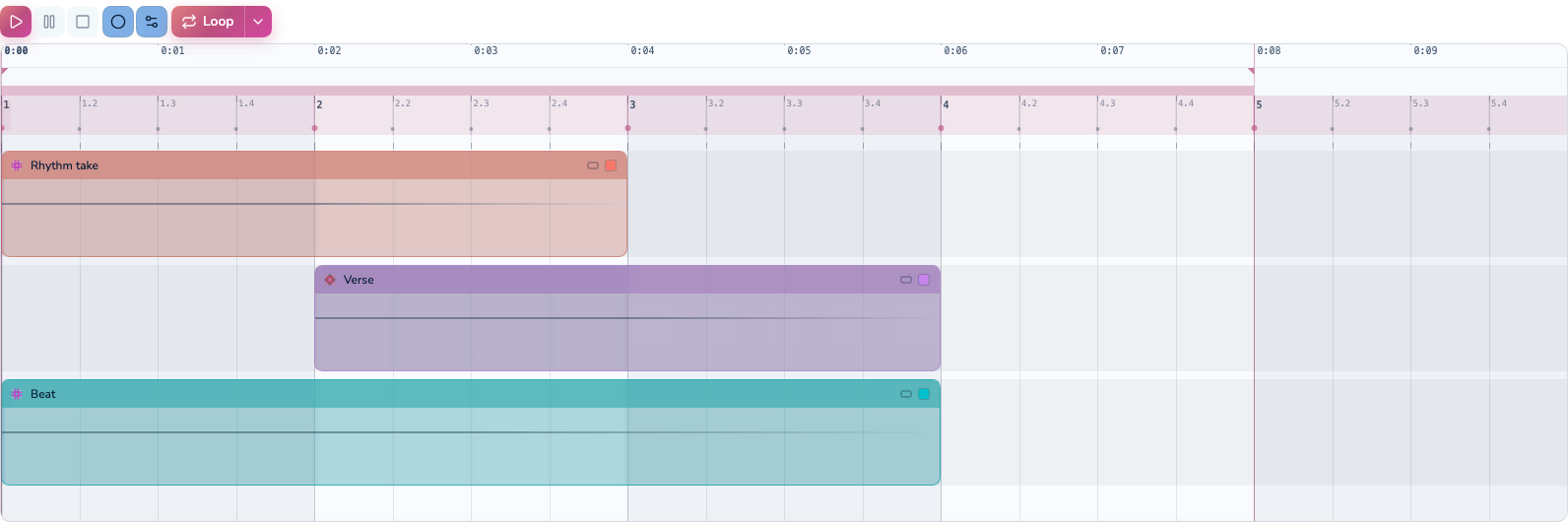
The timeline shows clips on horizontal lanes aligned with tracks. The ruler displays time in seconds. Drag the background to pan, use Ctrl or ⌘ with the scroll wheel to zoom, and click empty space to set the paste position.
Details slideout (bottom)
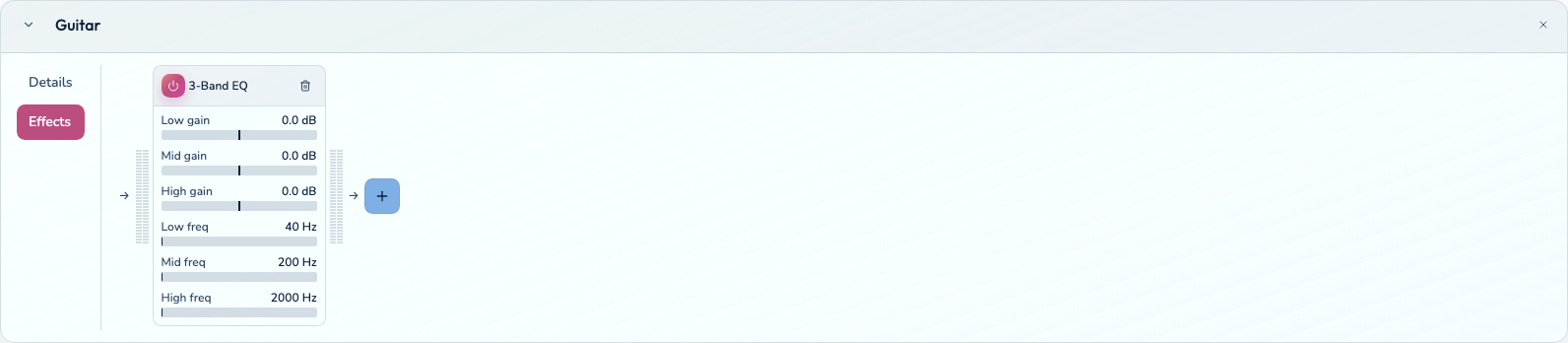
Select a track, clip, or clip group to open the bottom panel. Details shows mix and naming controls; Effects (tracks only) shows the signal chain.
Message bar

The strip at the bottom shows contextual keyboard hints for whatever you have selected or are dragging — play, record, snap toggles, grouping, and more.
App menu and themes
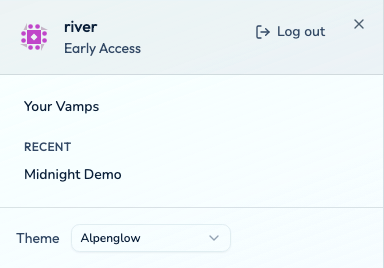
Open the menu button in the top app bar for account info, Your Vamps, recent projects, log out, and Theme selector. Vamp offers Minimalist Light, Minimalist Dark, Alpenglow, and Sunset palettes.
Undo and live sync
Press Mod+Z to undo and Mod+Shift+Z to redo. When collaborators edit the same Vamp, their changes appear in your open editor through live sync.